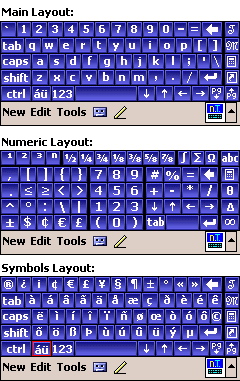
Alphabetic, Special characters, and Numeric Layouts:
|
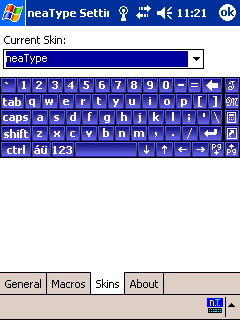
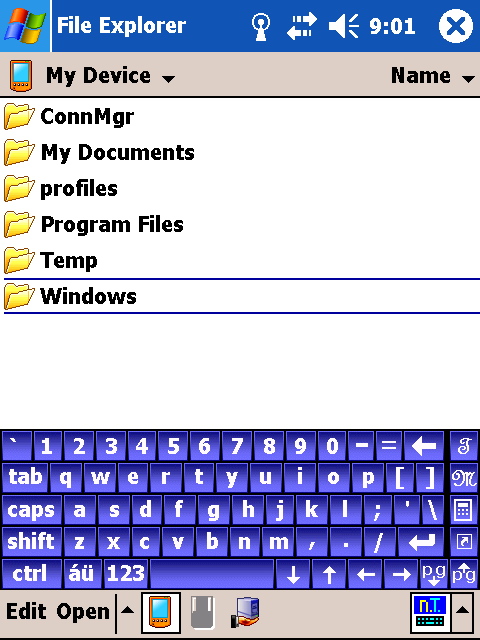
These layouts are similar to the standard keyboard layouts. The landscape version of these
layouts are designed to use the available space as effectively as possible.
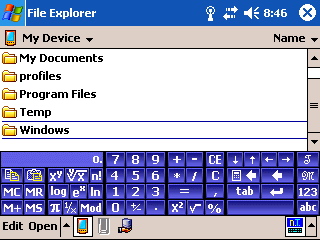
As shown in the following picture, the numeric layout has a lot of useful characters
that are not available in the standard keyboard.
Landscape and VGA support:
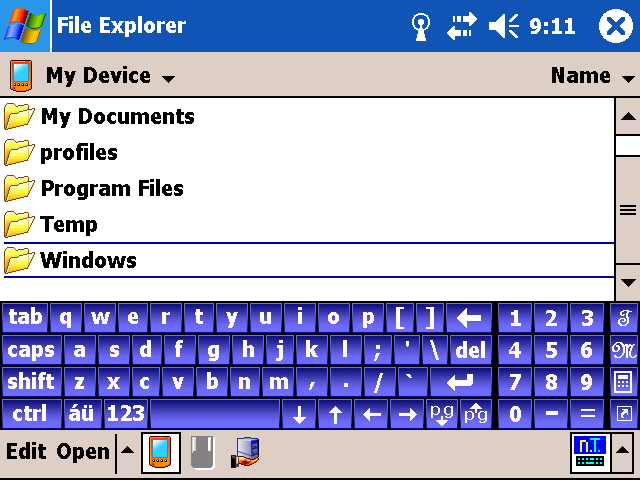
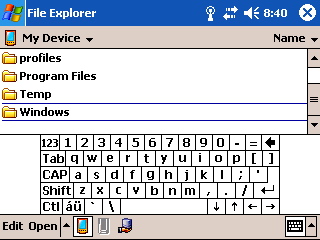
Different layout and skins are available for different screen resolutions and orientations. The landscape keyboard layouts are designed to use the space more effectively. Just look at the following pictures that compare neaType with the standard keyboard in landscape mode.

Standard Gestures:
|
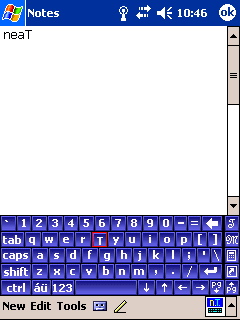
neaType supports the following standard Gestures:
- Tap and hold on a key and drag up to combine the shift key with the selected key.
- Tap and hold on a key and drag down to insert a carriage return.
- Tap and hold on a key and drag right to add a space.
- Tap and hold on a key and drag left to backspace one character.
Macro and Record Capabilities:
|
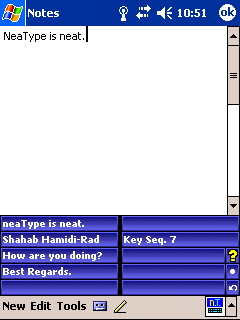
This layout allows you to enter frequently used phrases and strings to a layout and enter them
just by tapping on the button for each phrase/string. You can also select some special "Dynamic Phrases"
such as current date, current time, and owners name, address, and phone number.
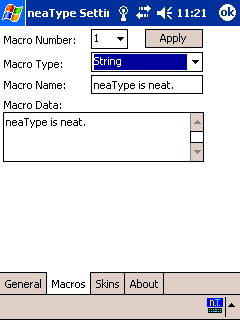
Using the Macros Layout you can also record a sequence of key strokes and play it back later.
The sequence of key strokes can contain any key on your keyboard such as arrow keys, Enter,
backspace, and any other key on alphabetical and numerical layouts. You can assign names
to your recorded macros and key sequences in the neaType Settings dialog box. Please refer to
the neaType Help for more information.
Calculator:
|
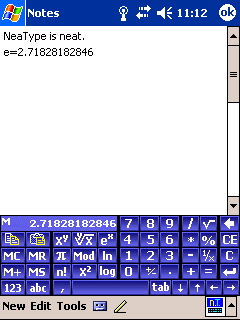
The calculator page provides a complete calculator. You can do all operations available
on most calculators and some of operations available on scientific calculators.
To enter the result of your calculations in current cursor position tap on the results box.
Task Manager:
|
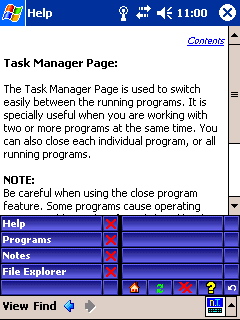
neaType comes with a complete task manager in one of the keyboard pages. To access
the task manager, tap on the "T" key usually on the top right corner of most keyboard pages.
Using the neaType task manager page, you can easily switch between different
applications when you want to enter text in more than one program, for example
when you are editing an Excel spreadsheet and a Word document at the same time.
You can also close unwanted programs to free memory and system resources.
Shortcuts:

|
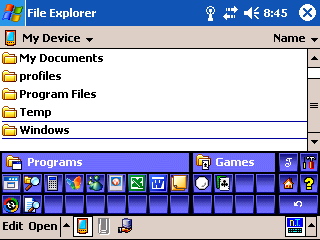
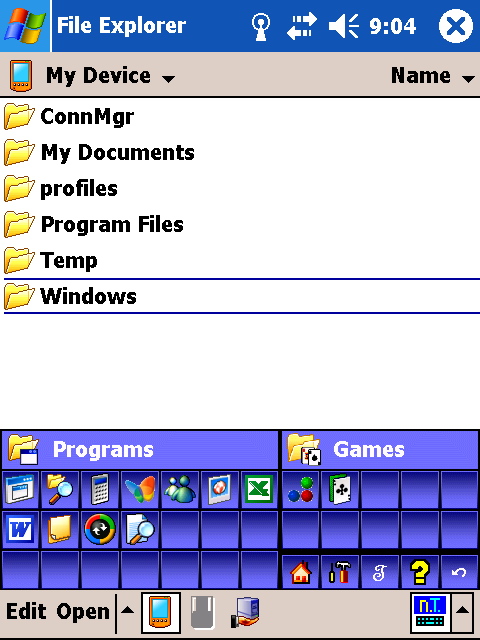
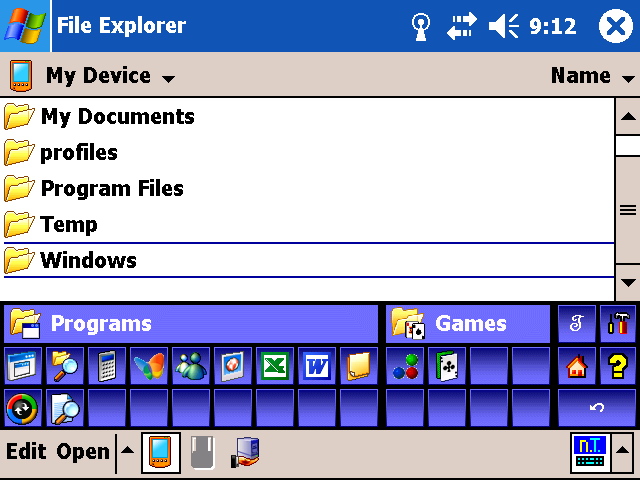
The shortcuts page of neaType keyboard contains the shortcuts to the applications in your
Programs and Games folders. For example, to run Solitaire, instead of
Instead of tapping Start->Programs->Games->Solitaire you can go
the Shortcuts page of neaType and tap on the button with Solitaire's icon on it.
In the shortcut page there are also special keys to open the online help, open the neaType
Settings dialog box, and go to Today screen.
Online Help:
|
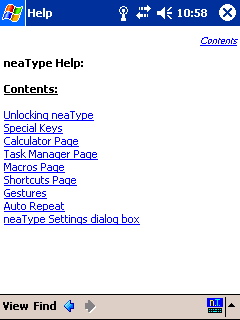
You can access an online help that is copied to your device at the time of neaType installation. To access help go to Shortcuts layout and tap on the yellow question mark key.